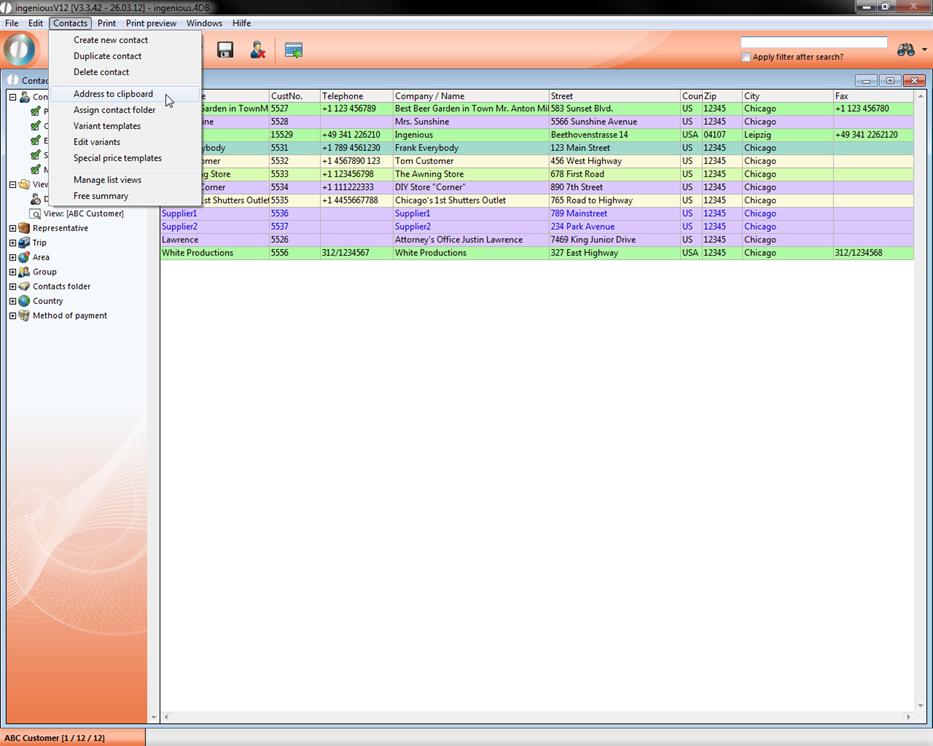
The menu item “Contacts/Addresses to clipboard” gives you the possibility to copy the contact addresses in the clipboard. From there, you can enter data in any field within Ingenious.V12 and/or in every other windows application. This is very fast and easy.
Practice with the clipboard
1. Select the contact with the customer number (CustNo.) “5531”.
2. Select the menu item “Contacts/Addresses to clipboard”
3. To check if the data was really copied into the clipboard, select the menu item “Edit/Show clipboard”.
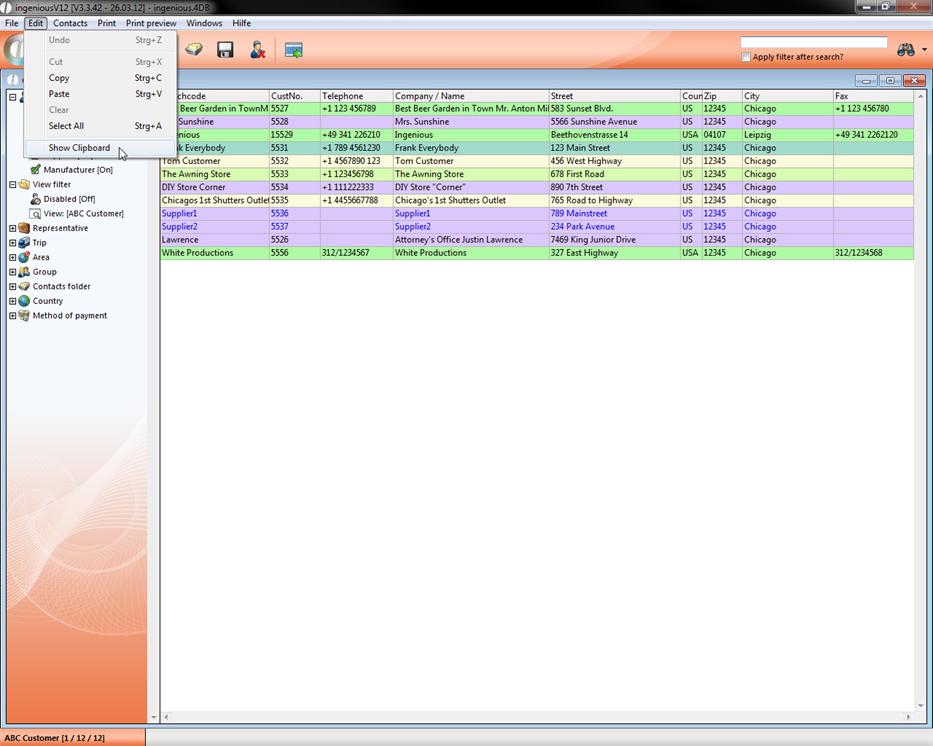
A window with the current clipboard content appears. As expected, the address and selected records are shown in the window. The data remains in the clipboard until you enter something new.

Tip: You also can work at any time in Ingenious.V12 with the well-known combination of keys Control + C (copy) and Control + X (cut) and Control + V (paste). In order to insert the data again into a text field, select the menu option in the target program “Modification/Entering” or the key combination Control + V.
4. “Start/Program/Accessories/Editor” from the Windows start menu in order to start the Windows text editor.
5. When the Windows Editor has started, select the menu option “Modification/Entering” in the menu bar.
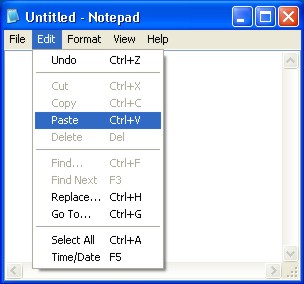
Menu in the Windows Editor
The address data are entered in the Windows Editor and can used further. This is very significant for the creation of individual mailings.
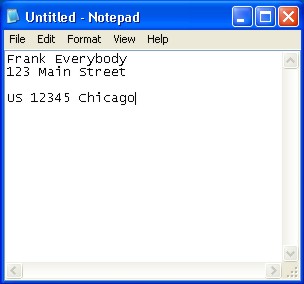
The entered address data in the Windows Editor